

Enhanced Portal Security: Multi-Factor Authentication

Multi-Factor Authentication (MFA) requirement coming soon for online portal access.
At Preferred Employers, protecting your business is our top priority, and that commitment extends to the security of your online account. To continue strengthening your digital safety, we are introducing Multi-Factor Authentication (MFA) for all customers who access our online customer portal. This enhancement adds an important layer of protection that helps prevent unauthorized access and keeps your sensitive information secure. As cyber threats become more sophisticated, MFA has become a trusted industry standard that provides greater confidence each time you sign in.
What's Changing?
- Multi-Factor Authentication (MFA) will soon be required for all customers accessing the Preferred Employers online portal.
- MFA adds an extra layer of security by using two or more verification steps.
- This change helps protect accounts from fraud, unauthorized access, and credential-based attacks.
Timeline:
- This change Impacts both brokers and policyholders accessing our portal.
- March 3, 2026: MFA Enrollment Period Begins
- May 1, 2026: MFA Enrollment Required for All Users
Enrollment Options:
Beginning March 3, navigate to app.peiwc.com and follow MFA setup instructions as prompted. After entering your username and password, you will see the MFA setup screen. You’ll be presented with multiple MFA options:
- Notification via Auth0 Guardian app [Recommended]
- Google Authenticator or similar
- Telephone (Text Message or Voice Call)
- Security Key
MFA registration can be deferred during the initial enrollment period. After May 1, 2026 MFA will be required.
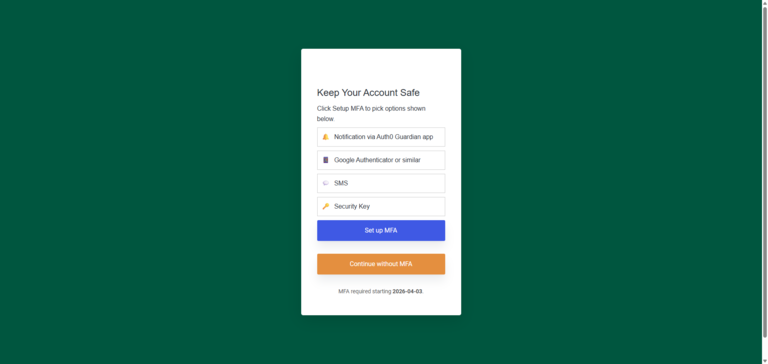
Note: Only the Set Up and Continue Without buttons are clickable, the others are options that will be clickable in the second step (below).
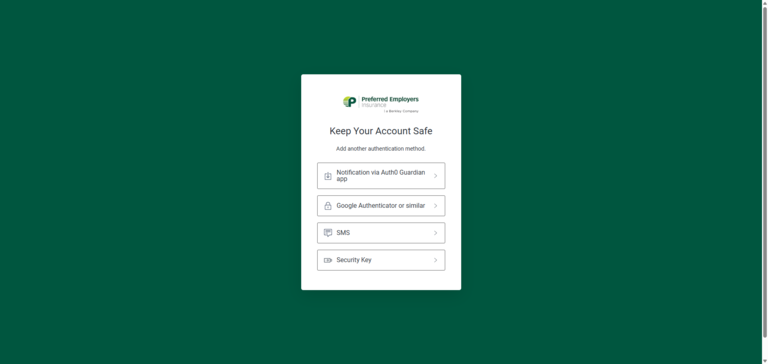
Setting Up Auth0 Guardian for Push Notifications (Recommended)
Download the Auth0 Guardian App on your mobile device
- Select Notification via Auth0 Guardian app on the screen when prompted
- Open the Auth0 Guardian app on your mobile device and scan the QR Code shown (image below shows an example, scan the QR code when prompted in your registration workflow)
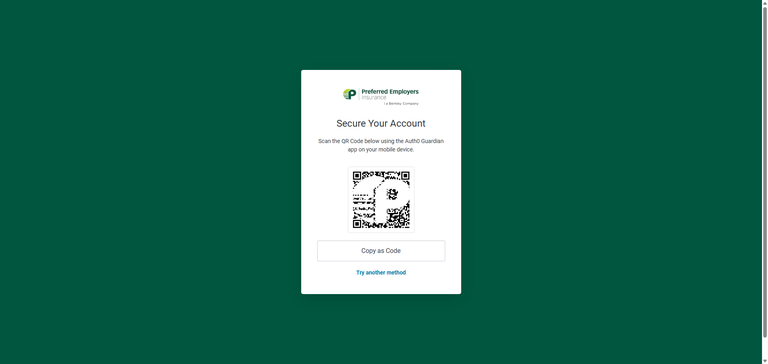
Setting Up an Authenticator App
Download and/or open Google Authenticator, Microsoft Authenticator, Authy, etc.
- Select Google Authenticator or similar on the screen when prompted
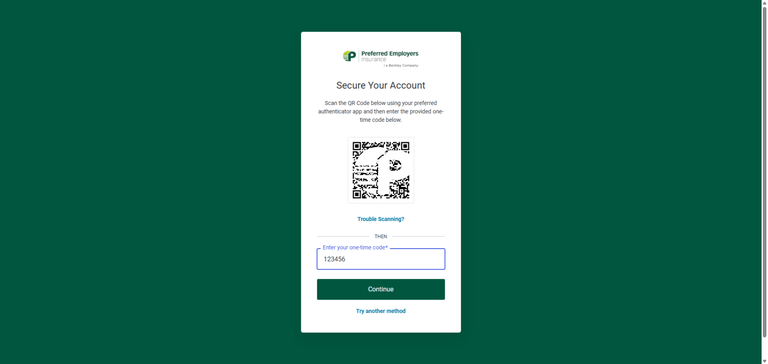
- Open your preferred authenticator app and scan the QR Code shown (image below shows an example, scan the QR code when prompted in your registration workflow)
- Enter the 6-digit code from the authenticator app
- Click Verify to complete setup
Setting Up Telephone Authentication
- Select Phone on the screen when prompted
- Enter your mobile number and click Continue
- Select whether to receive your codes via Text Message or Voice Call
- You will receive a 6-digit code to your selected device, enter the code to complete verification
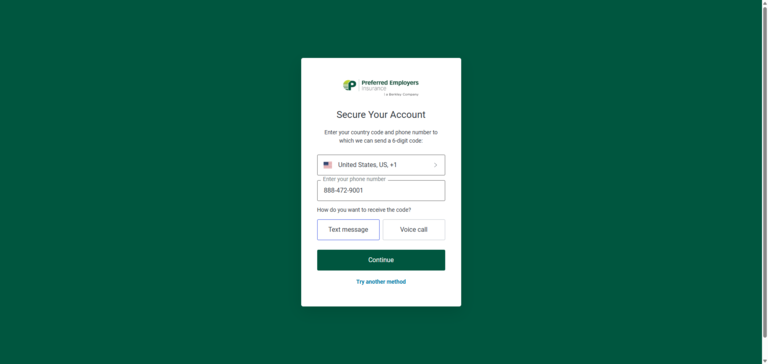
Note: The Telephone and other Authenticator App options will be code-style authentication, where the code is provided on their secondary device and they will then enter that code into Berkley Beyond to complete their login
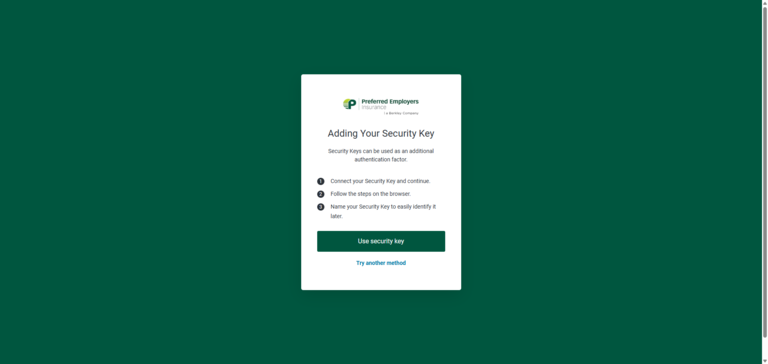
Setting Up a Security Key (YubiKey or Similar FIDO2/WebAuthn Key)
This is a physical key that is plugged into your device and provides a code.
- Select Security Key on the screen when prompted, then select Use security key on the next page
- Insert your security key (e.g., YubiKey) into your device’s USB port or tap it via NFC if supported
- Follow the on-screen prompts to register the key
- Touch or tap the key when prompted.
Successful MFA Registration
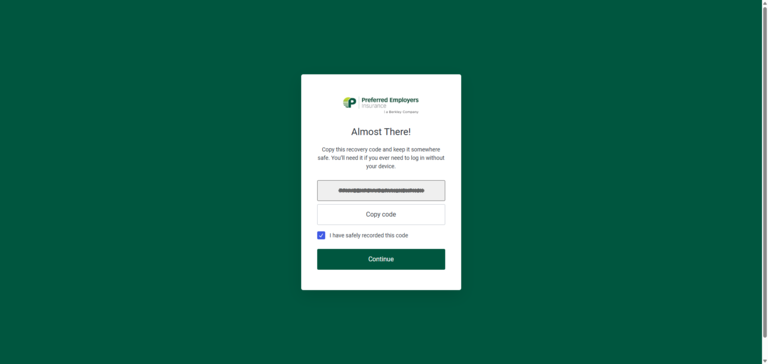
After completing enrollment, you’ll see a confirmation screen indicating that MFA is enabled.
You will also receive a recovery code. Document this code in the event you are locked out of your account or need change your MFA method in the future.
Authenticating your Logins with MFA Enabled
- Open the application: https://app.peiwc.com
- Enter your username and password
- Click Log In
- Complete MFA Verification previously set-up in the steps above
Depending on what you enrolled:
- Push Notifications (Guardian): You will receive a push notification, tap Approve
- Authenticator App or Telephone: Open your device and enter the 6-digit code
- Security Key: Insert or tap your security key when prompted
Troubleshooting
Didn’t receive SMS?
- Ensure your mobile number is correct
- Check network coverage or signal strength
Push notification not received?
- Verify your phone has an internet connection
- Ensure notifications for Auth0 Guardian are enabled
Authenticator app codes not working?
- Verify your device’s time is set to automatic and accurate
- Rescan the QR code if needed
Security key not detected?
- Try a different USB port
- Ensure NFC or USB support is enabled on your device
Questions? Visit www.peiwc.com, call 888-472-9001, or email [email protected] for assistance.